When Discombobulator opens, it will show the next UK/Irish horse race that hasn't yet started. The odds display should be familiar to all Betfair users - hopefully there's no need to explain what all the numbers mean!
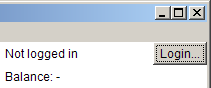
To place real bets using Discombobulator, you will need to log in to your Betfair account through the program - simply being logged in on the Betfair website is not enough, as the login details are not shared. You can try out the program without being logged in, but remember that you won't be making any money on the 'pretend' bets that it will make!
When it starts, Discombobulator will automatically show the next UK / Irish horse race. If you wish to pick a different race, open the 'File' menu at the top left. You can step between races with the 'Next' and 'Previous' options, or pick a race by using the 'View races...' option. You can view non-UK races by selecting this in the options menu. However, most non-UK races do not go in-running. The race time display in the bottom corner of the screen will show if the race will not turn in-running.
Instead of negotiating Betfair's menu of events, Discombobulator lets you search for a particular markets. Select the 'Find event' option from the file menu. Enter a search term, e.g. 'FTSE' to find the financial markets, and the program brings up a list of matching events. If you still can't find the right event, try using a more specific search term - only a limited number of results are displayed. For example, don't just search for 'Tennis' to find the match you want, try searching for the name of one of the players.
The main difference between using Discombobulator and the Betfair website is that there is just the one button to click to place your bet. This lets you prepare your bets beforehand and then click the button the instant you want to execute the bet.
Betting pre-race is not quite one-click. You must first click on the runner's name on the left hand side of the window to select who you want to bet on. This will enable the 'bet' button, and you can then click on it to place the bet when you are ready.
If you click on the name with the left mouse button, the name is highlighted in dark blue, and you are choosing to back this selection. If you click using the right mouse button, the name is highlighted in dark pink, and you are choosing to lay this selection. The text inside the bet button will describe the bet that you will be about to place.
If you click on the same name twice, the bet will be unselected and the bet button will be de-activated.
The odds that you back and lay at are pre-set, and can be changed by clicking on the buttons on the right of the window. Lays can also be set to be at a fixed liability - i.e. you will lay at the current odds to risk a set amount of money.
Betting in-running works in the same way as pre-race, but with one slight change. If you have not manually selected a runner to bet on, then the runner with the shortest odds will be highlighted in light blue. Clicking the bet button will back this selection, i.e. you will be placing a bet on what appears to be the leader in the race. In this way, the program makes it easy for you to quickly back the soon-to-be winner at the very end of the race (we hope!)
Remember, if you do not log in to your Betfair account, Discombobulator will still allow you to place bets, but these will be faked, i.e. the program will emulate placing a bet and will report the odds and money that you could have won (or lost!) by placing a real bet at that time.
Your bets will be regularly compared against the current odds to spot when this is possible. If there is the potential to lay-off your bets, the 'take profit' button will become active and will show how much money you could gain. Clicking the button will automatically make the right bets for you.
Please note:
The 'BetBot' is an automated robot that can analyse the betting patterns of an in-running horse race, and place a bet in the closing stages of the race on what it determines is the likely winner. This is not enabled by default - it won't bet your money unless you ask it to! See the BetBot page for full details of how to use this helper program.
All bets placed using the program are recorded. To view your bets, select the 'Bets...' option from the File menu. This will show all bets on the current event (including any bets placed on the normal Betfair website). The 'All bets...' option shows all your bets on all events.